
Mobile App
RISE26 Mobile App
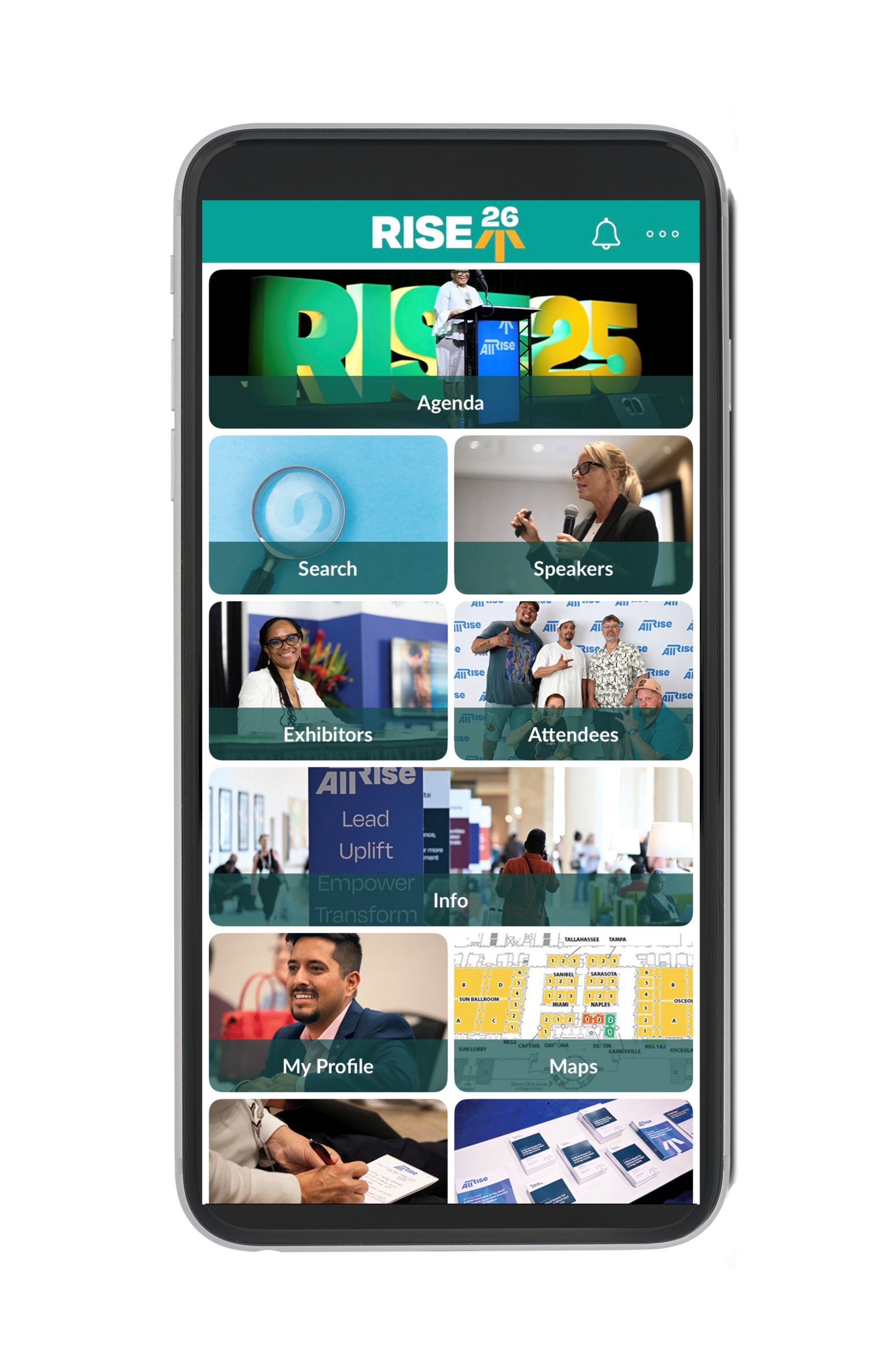
The RISE26 mobile app is now available! The app is the single best way to navigate the conference, with all the info you need right at your fingertips! The app will be the exclusive home for session information and will be continually updated throughout the conference, including any last-minute schedule changes.
Once you download the app, start browsing and get ready for a transformative RISE26!
- Build a personalized schedule, take notes, and download presentations and handouts
- Receive real-time updates on conference events and schedule changes
- Search for speakers, exhibitors, and fellow attendees
- Complete session evaluations for continuing education credit
- Connect and network with your colleagues
- Join the #RISE26 conversation on social media
- Find local Nashville hot spots
- And much, much more!
How To Download and Log In
- To locate the app in the stores, you can:
- Scan the QR code on this page.
- Click here for Apple, or click here for Android.
- Search “RISE26” in the App Store or Google Play.
- Once you've installed the app, open it from your device.
- Click “Yes” to allow push notifications.
- You are only required to log in once.
- Your username is the email address associated with your RISE26 registration.
- Your password is your 8-digit registration confirmation number.

How To Obtain Continuing Education Credit Through the App
How To Evaluate Sessions You Attend
- Click the “Agenda” module.
- Find the session and add it to your personal schedule (i.e., the “My agenda” tab) by clicking the star icon. Once selected, the star will turn yellow.
- Once you've attended the session, return to the “My agenda” tab and click on the starred session you would like to evaluate.
- In the “Detail” session view, click “Session Evaluation Survey.”
- Once you have completed the survey, click “Submit Evaluation.”
- Repeat these steps for each session you attend.
How To Download Your Certificate
Shortly after the evaluation deadline, you will receive an email from All Rise with a link to download your certificate. If you require any changes or see incorrect information, email continuingeducation@allrise.org. Alternatively, you can log in to your RISE26 registration account by using the same credentials as the app:
- Your username is the email address associated with your RISE26 registration.
- Your password is your 8-digit registration confirmation number.
Once you log in, you will see your registration information with a link to download your certificate.
The deadline for Arkansas, Illinois, and Louisiana is July 31, 2026. The deadline for all other states is August 7, 2026.
To learn more, visit our continuing education page. For step-by-step instructions with visuals, click below.
How To Download Handouts
- Go to the “Agenda” module
- Select the session
- Click “Add -> Handouts”
- Enter your email address (you will only need to do this once)
- Click “Add -> Handouts” (you will only need to click this again after entering your email)
- Go to the “Handouts” module
- Click the three dots in the top right corner
- Click “Receive Handouts”
Handouts will be emailed to the address you provided. Click on the “Document1” link to view the PDF handouts.
How To View a Speaker's Schedule
- Click the "Speakers" module.
- Find the speaker you are interested in learning more about, and click their name. Click the down arrow to see their full profile.
- To see the list of sessions in which they appear, click "Show Sessions."
- If you're using an Android device, the speaker's full session list will appear. If you're using an Apple device, and the speaker appears in sessions across multiple days, you can either:
- Click on the date at the top of the screen and select a date from the drop-down menu that appears, or
- Tap the > arrow to show the next date of that speaker's sessions.




PLATINUM

GOLD

SILVER
![Abbott Logo_FullColor_Horizontal_RGB[6]](https://nadcpconfstage.wpengine.com/wp-content/uploads/2021/06/Abbott-Logo_FullColor_Horizontal_RGB6.png "Abbott Logo_FullColor_Horizontal_RGB[6]")








BRONZE